Create and Export a Pixel Art Planet
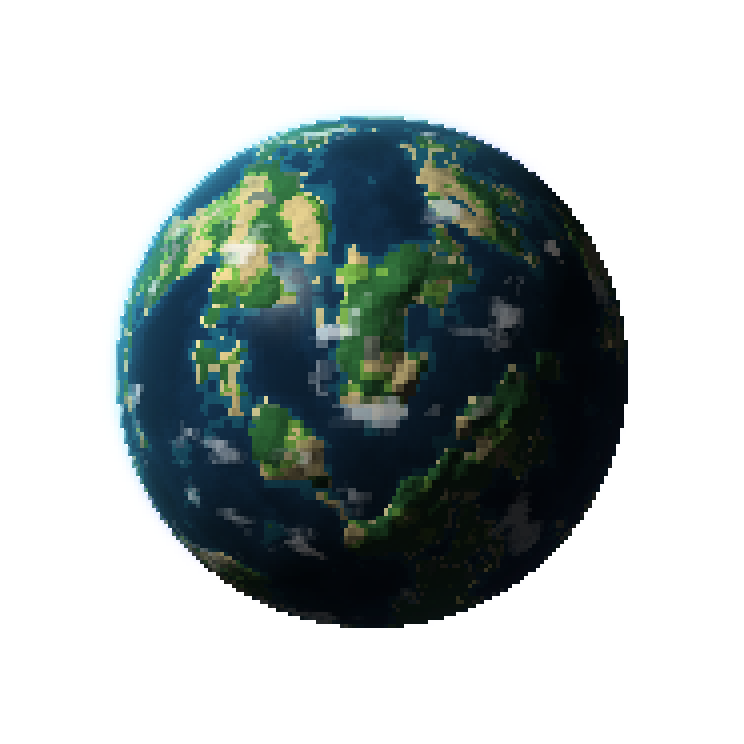
Use Pixel Planet Forge to create a consistent planet sprite, then check its size, transparency and animation before adding it to a game.
Choose a purpose before exporting
A small orbit-map icon needs a clear silhouette. A large background planet can use more cloud and terrain detail. Start at the native size you need and judge the preview at the scale players will see.
Keep a reproducible version
- Open Pixel Planet Forge and choose a planet type.
- Choose a seed, adjust terrain and palette, then set lighting and clouds.
- Save the preset JSON before trying another random variation.
- Export a transparent PNG for a still sprite, or use the animation export for rotation.
Inspect the result
Open the exported file on both a light and a dark background. Check its outer edge and any rings. For animation, compare the final frame with the first: a visible discontinuity can make the loop distracting. Keep the exported timing and sheet information with the art.
Use a sprite or a 3D model deliberately
A flat sprite works well for a map or a 2D space game. The 3D Model export has a different workflow: follow the included setup instructions for your target engine. Do not treat a model export as a drop-in replacement for a 2D image.
Planet Forge capabilities and license · Import sprites in Godot · Generate matching nature assets