
Import Pixel Art and Sprite Sheets into Godot 4
Turn a downloaded PNG or sprite sheet into a usable Godot 4 sprite, with the correct cell size and animation order.
Choose the right source file
Start with the downloaded original, not the enlarged cover. Check whether it contains a single object, a grid of different objects or consecutive animation frames. A sheet of 64 different animals is a collection, not a walk cycle.
Static images
Copy the PNG into your project and use it as a Sprite2D texture. Set texture filtering to Nearest for crisp pixels. Compare it with nearby objects at the same display scale before building the rest of your scene.
Animated sheets
- Create an AnimatedSprite2D and a new SpriteFrames resource.
- Open SpriteFrames and choose Add frames from a Sprite Sheet.
- Select the original PNG. Set the horizontal and vertical frame counts from its actual layout.
- Select only the frames for one action, in playback order. Name the animation and set its speed.
- Preview the loop and check that the sprite stays aligned.
Godot documentation: 2D sprite animation.
A concrete grid example
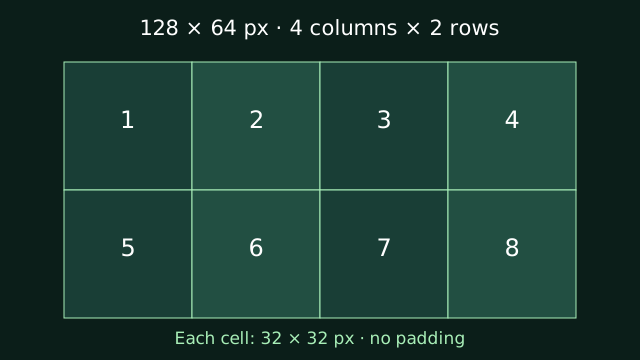
A 128 × 64 image with 32 × 32 cells and no padding has four columns and two rows. It contains eight cells. If those cells show eight different items, import them as separate static objects. Play them as an animation only when the download identifies them as animation frames.
Fix common problems
- Blurry: check filtering and fractional scaling.
- Several objects appear at once: slice the sheet or select a region instead of displaying its full texture.
- Animation jumps: check frame order, empty cells and alignment.
- Size looks wrong: compare the drawn character height, not just the cell dimensions.
Browse assets listing Godot · Understand sheets and spacing · Check usage terms